You can shoot the most captivating content in the world, but if your video file takes forever to load, gets stretched out of shape, or looks pixelated after uploading, you are losing money. Managing file formats, aspect ratios, and bitrates might sound overly technical, but getting these settings right is crucial for a smooth user experience and maximum conversions.
Here is your complete guide to video formats, rendering settings, and multi-platform export strategies for OnlyFans, IWantClips, Clips4Sale, and social media.
The Killer Video Format: What Codec Should You Use?
When exporting your promo clips and full-length content, compatibility is key. You want a format that works seamlessly across all browsers, mobile devices, and platform ingestion engines without requiring unnecessary conversion time.
- The Gold Standard: MP4 (H.264 Codec + AAC Audio)
This is the undisputed king of web video. Nearly every site on the internet native-supports MP4 encoded with the H.264 video codec and AAC audio. It delivers an optimal balance between crisp visual quality and manageable file sizes. If you are ever in doubt, export to MP4/H.264. - The Modern Alternative: HEVC / H.265
H.265 offers roughly double the compression efficiency of H.264, meaning you get the same visual quality at half the file size. While ideal for saving hard drive space, be cautious: some older clip site uploaders or legacy mobile devices still struggle to process or play back raw H.265 files smoothly. - Formats to Avoid for Uploads: MOV, AVI, and WebM
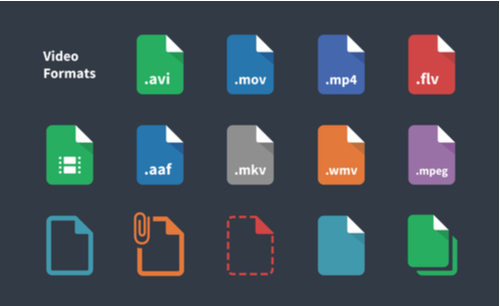
While ProRes MOV files are fantastic as archival master copies on your computer, they are far too large for web previews. AVI is outdated, and WebM can be finicky depending on the platform. Stick to MP4 for your final uploads.
Aspect Ratios: Matching the Screen to the Platform
Different platforms cater to different viewing habits. One size does not fit all, and uploading a widescreen video with black bars to a vertical feed looks amateurish.
- 16:9 (Landscape / Widescreen - 1920x1080 or 3840x2160): The standard for traditional video players on desktop-heavy sites like Clips4Sale, IWantClips, and ManyVids.
- 9:16 (Vertical / Mobile - 1080x1920): Essential for mobile-first platforms like TikTok, Instagram Reels, Twitter/X video feeds, and OnlyFans Stories. This fills the entire smartphone screen, eliminating distractions.
- 1:1 or 4:5 (Square / Portrait - 1080x1080 or 1080x1350): Ideal for feed posts on platforms where desktop and mobile traffic mix. They take up more vertical real estate in a scrollable feed than a traditional 16:9 landscape video.
Bitrates, File Sizes, and Frame Rates
Bitrate determines how much data is processed per second of video. High bitrates mean higher quality, but also massive file sizes that lag when stream-previewed.
For a 5 to 10-second promo clip, your primary goal is instant playback. If a trailer takes 5 seconds to buffer, the buyer has already scrolled away.
- Resolution: 1080p (Full HD) is the sweet spot. 4K is great for main full-length videos, but entirely unnecessary for 10-second social trailers and slows down page loading.
- Target Bitrate: 6 to 10 Mbps (Megabits per second) for 1080p promos. This keeps a 10-second clip well under 10–15 MB while keeping motion sharp and artifact-free.
- Frame Rate: 30fps (frames per second) is standard and ideal for fast web rendering. 60fps offers silky smooth movement, but it increases file size and rendering times.
Recommended Software (Free & Premium)
Whether you need to edit, export, or quickly shrink a file that is too large, these tools get the job done:
- HandBrake (Free & Open Source): The ultimate video transcoder. If you have an oversized video file, drop it into HandBrake, select the "Web Optimized" MP4 preset, and shrink the file size dramatically without sacrificing noticeable quality.
- CapCut (Free / Mobile & Desktop): Excellent for auto-formatting aspect ratios. With a couple of clicks, you can reframe a 16:9 video into 9:16 vertical content for social promos.
- Adobe Premiere Pro / DaVinci Resolve (Premium / Freemium): Provide comprehensive export controls. You can set custom rendering queues, build reusable export presets, and fine-tune bitrates down to the kilobit.
The Multi-Export Strategy: One Edit, Three Assets
To maximize your efficiency, establish a multi-export workflow every time you complete a edit session for a new scene:
- Asset 1: The Master Clip (16:9 Full HD/4K, High Bitrate): Upload this to your main clip store catalog as the full-length purchase file.
- Asset 2: The Store Trailer (16:9, 1080p, Fast-Loading MP4): A 10-second preview designed specifically to sit on your Clips4Sale or IWantClips product page.
- Asset 3: The Social Teaser (9:16 Vertical, 1080p, Reframed): Reframe the 10-second trailer vertically with bold captions and a CTA overlay for TikTok, Twitter, Instagram Reels, and OnlyFans promo posts.
Final Thoughts
Understanding technical settings saves you time, prevents upload errors, and delivers a smooth viewing experience to your buyers. By standardizing your workflow around 1080p H.264 MP4s and matching your aspect ratios to the platform, you will ensure your promos look flawless on every single screen.